
Thanks for your patience while we work on getting this content into the webpage. Until then, download the document below to view it on your device!
Download document:

When logging in, be sure to use the correct URL and a Preferred or Acceptable browser from the list below.
URL: https://www.clienttrack.net/housingforward
Preferred Browsers
Acceptable Browsers (users may experience infrequent connectivity issues)
Incompatible Browsers (do NOT use)

It is extremely important for every user to set up their recovery information by creating a Security Question and Answer. This allows users to reset their own password in case their password is forgotten. If the recovery information is not set up, users must submit a Spiceworks ticket to the HMIS Team to have their password reset. Response times to tickets are not guaranteed to be immediately or within the time that a user might need to access the system in urgent or emergent situations.
To set up your recovery information, you can follow the pop-up to review your recovery information the first time you log in. If you dismissed this pop-up, follow the steps below.
1. Click on your initials in the top right corner of the screen after logging in.

2. Click on Security Settings under your picture.

3. Enter your password.

4. Click on “Update your account recovery information”

5. Create a Question which only you will know the answer to. Then type in the Answer to that question.
NOTE: Answers are case sensitive. If your question was “Who was your favorite teacher?” You answer will need to be entered exactly the same way each time. “Ms Jones” or “MsJones” or “msjones” would NOT be considered the same answer by the system.

6. Click Update to save the recovery information and return to your previous dashboard.
Always remember to log out of the system when it is not in use!
Download document:
Paused workflows are incomplete assessments. You are likely to create a paused workflow if you begin an assessment (entry, update, annual, or exit) and then navigate away from the assessment, pause or cancel the assessment, click the Back arrow, or log out without completing the assessment. These actions are highly discouraged because paused workflows can result in incomplete data and inaccurate reports.
The HMIS Team recommends that you regularly check your Paused Workflows to ensure data quality by deleting the workflow and reviewing the client’s record.
1. Log in to ClientTrack and navigate to your Home Workspace.
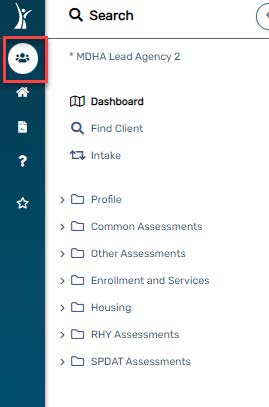
2. Open the menu on the left if needed, navigate to the “Profile” menu, and then click “Paused Workflows”.

3. If you have any Paused Workflows, RESUME them with the Play icon
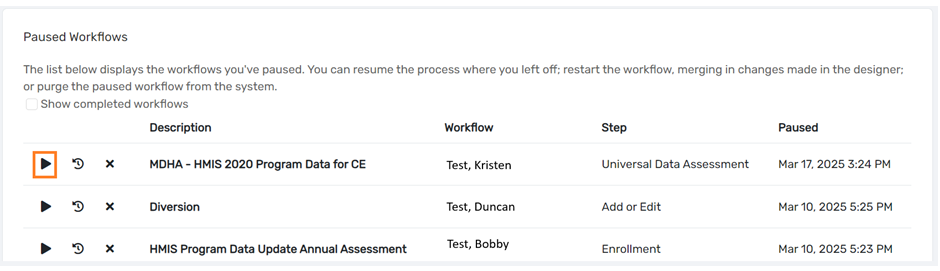
NOTE: The Restart icon allows you to restart the workflow, the X icon allows you to delete the workflow, but these options are not recommended.
4. Return to the Client workspace and review the client’s record to be sure that all assessments recorded there are accurate and up to date.
Download document: