

Case-Manager-Assignment-Cheat-Sheet.pdf
Introduction #
Every HMIS user in ClientTrack is assigned “Case Manager” access, regardless of their role or job title at their agency. The assigned case manager inside ClientTrack is the HMIS user assigned to that client’s enrollment in a given program. A client can have multiple case managers assigned to their enrollment(s).
The case manager is automatically assigned to the HMIS user completing the intake (entry/enrollment) assessment for a client.
Case Manager Assignments
Locate the neighbor using Find Client, once on the client’s dashboard select Profile and then Case Managers.
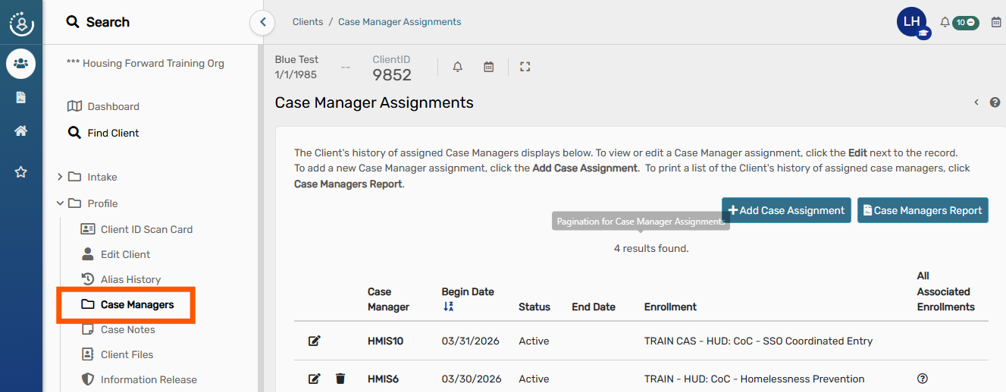
Case manager assignments are grouped.
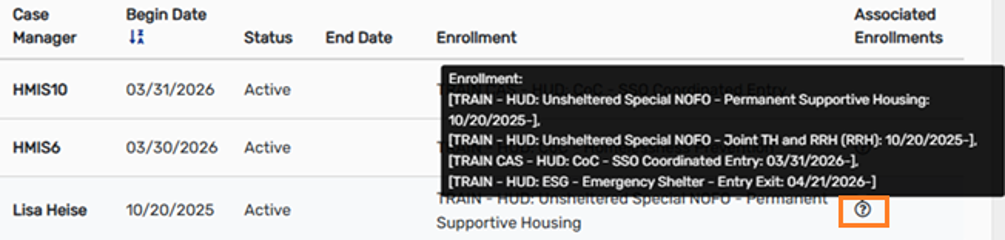
By hovering over the question mark, one can see all the active assignments.
Steps to Reassign via Case Manager Assignments #
On the Case Manager Assignments page, select “Edit Case Assignment” next to the previous case manager for the enrollment.
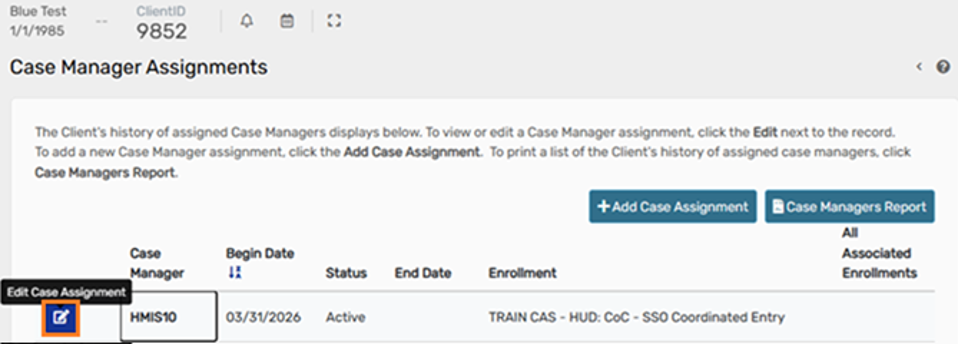
Add an End Date for the assignment, and set the Status to “Inactive”
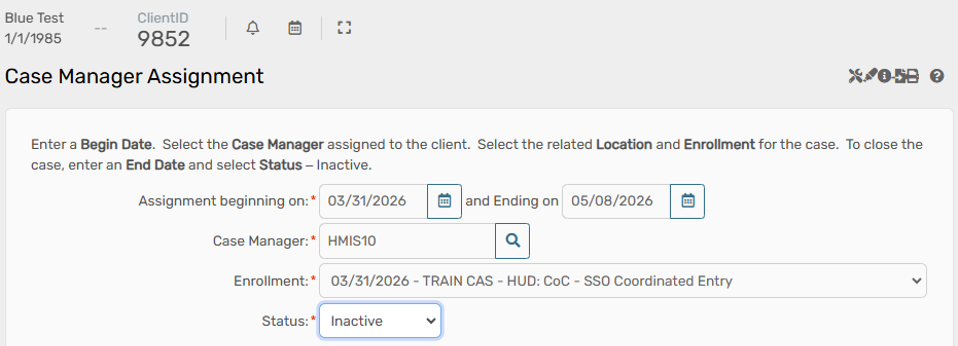
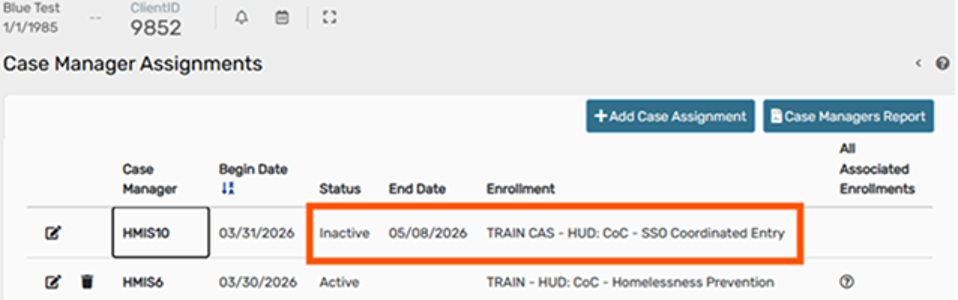
Now the assignment shows that the case manager is inactive on the date selected.
Steps to Reassign via Enrollment #
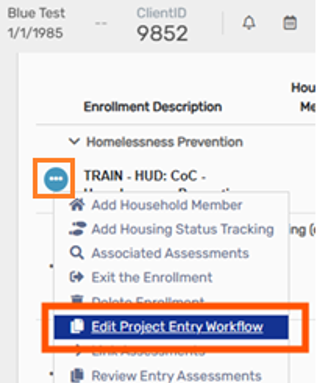
On the neighbor’s dashboard under the Enrollments section, locate the enrollment for your project, edit the project entry workflow via the three dots.
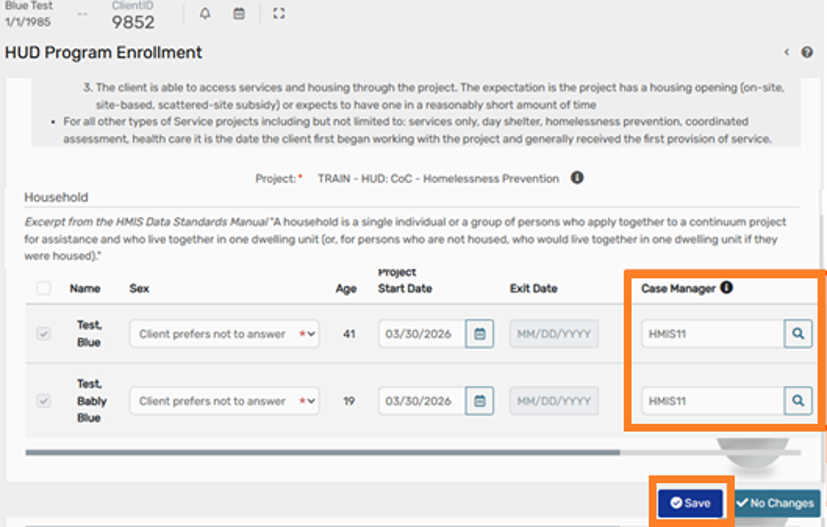
Continue through the workflow to the HUD Program Enrollment page and select the search button for the Case Manager assignment(s) you wish to change.
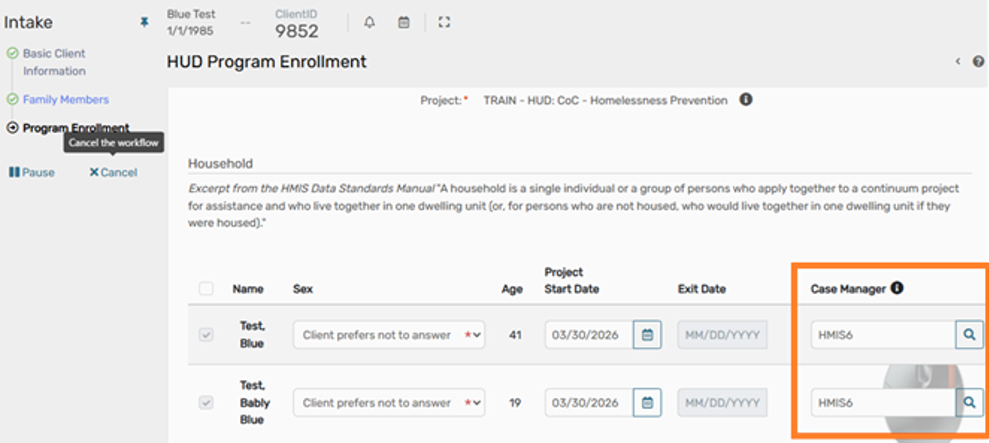
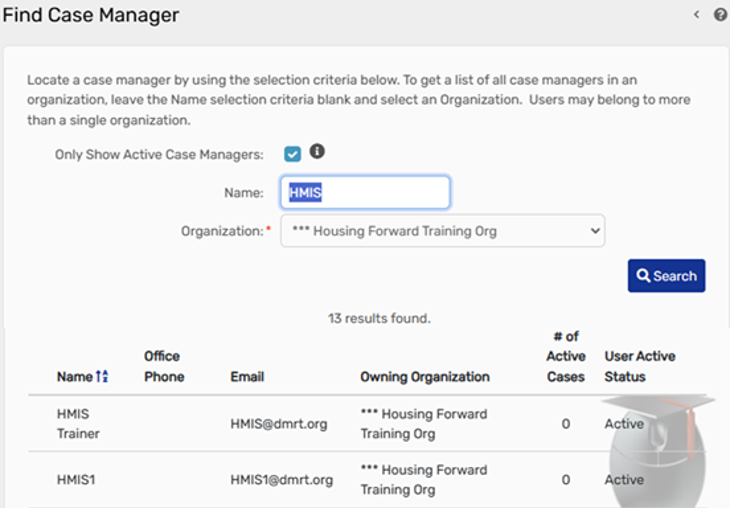
Search for the Case Manager by inputting their name.
Select the Case Manager you wish to assign to the enrollment.
Once the new Case Manager is selected, you will see the update on the HUD Program Enrollment page.
Select “Save” and continue through the workflow.